Fall 2026 - Important Semester Dates
| Tuesday, September 8, 2026 | Fall 2026 Semester Leave of Absence Deadline |
| Wednesday, October 14, 2026 | Fall 2026 Semester Mid-Term Grade Entry Begins |
| Monday, October 12 - Tuesday, October 13, 2026 | Fall 2026 Semester - Fall Recess (No Classes) |
| Friday, October 30, 2026 | Fall 2026 Semester Mid-Term Grade Entry Ends |
| Friday, December 4, 2026 | Fall 2026 Semester Deadline for Course Withdrawals |
| Friday, December 4, 2026 | Fall 2026 Semester Deadline for Pass/Fail Applications |
Fall 2026 - Progress Reports
The Student Progress Report in Navigate will be deployed twice during the fall 2026 semester. The dates are as follows:
1. Early Alert Progress Report: Monday, September 14th - Monday, September 28th
- The Early Alert Progress Report allows faculty the opportunity to raise Alerts at the beginning of the semester for those students who may be struggling early or who are showing signs of having attendance issues.
2. Late-Semester Progress Report: Monday, November 9th - Monday, November 23rd
- The Late Semester Progress Report allows faculty to raise the Recommended Pass/Fail or Withdrawal Alert before the semester deadline of Friday, December 4, 2026.
When an Alert is raised through a Progress Report and an instructor provides comments, students can review those comments in either of the following ways:
- Select the MY Docs icon in their Navigate account.
- Review the alert reason notification email that is sent to their Buffalo State University Outlook account.
Students should check both locations regularly so they do not miss important feedback or recommended next steps.
If your students are performing well and no Alerts are necessary, please log in to your Navigate account, access your Progress Report(s), and select the blue button: Submit unmarked students as not needing feedback (I’m all done). You can find this button at the bottom of your Progress Report(s).

- This is your "I'm all done" button. It will submit the students you have marked as you indicated. It will also submit the rest of your students as not needing feedback. For example, if there are ten students in your course and only two of them are at-risk, you don't have to mark them all. You can mark the two at-risk students and then use this button to mark the remaining students as not at-risk, therefore saving time and effort. Please use this button carefully because with just a single click, it will totally complete your Progress Report(s).
A Note About Raising Multiple Alerts for the Same Student
To minimize the volume of emails received by both students and staff regarding Alerts:
- Multiple Alerts for a single student can be challenging for advisors managing several advisees.
- For students in the same course, receiving multiple Alert notifications can be overwhelming.
- For students with multiple concerns, please raise the most pertinent Alert, such as Recommend Pass/Fail or Withdrawal. Include additional concerns in your comments, such as: (1) 3+ Attendance Absences, (2) In Danger of Failing, and (3) Missing/Late 2+ Assignments. This clarity will aid support staff in providing appropriate outreach and intervention.
Need Help Completing Your Progress Report(s)?
- If you need assistance, you may watch a video on How to Complete a Progress Report. Access requires your BSU Username and Network password.
- You may also read the How to Complete a Progress Report training guide.
- If you need a training session on how to complete your Progress Report(s), please email me at hudsonrj@buffalostate.edu to book an appointment.
Thank you for your continued efforts to support our students' success!
Bob Hudson, M.S.
Assistant Director for Student Success Administrative Systems
Progress Report Email Notification Sent to Instructors
Please Note: The email below is an example of a Progress Report email notification sent to instructors requesting instructors to provide feedback and complete a Progress Report on their students. The Progress Report is administered twice a semester.
From: Robert Hudson <hudsonrj@navigatesupport.buffalostate.edu>
Sent: Monday, April 6, 2026 11:31:38 AM
To: Staff User Last Name, First Name (staffusername @ buffalostate.edu)
Subject: Spring 2026 - Late Semester Progress Report

Student Feedback Request
Dear Professor (Last Name),
The Late Semester Progress Report will be available in Navigate starting Monday, April 6th, and will remain open until Monday, April 20th.
The Late Semester Progress Report allows faculty to raise the Recommended Pass/Fail or Withdrawal Alert before the semester deadline of Friday, May 1, 2026.
- Students can now view comments, if provided by their instructor.
- To learn more about the Alerts & Case Management workflow, please read our Alerts & Cases website.
- To learn how to raise an Alert via a Progress Report in Navigate, please watch the How to Complete a Progress Report video. Access requires your BSU Username and Network password.
- You may also read the How to Complete a Progress Report training guide.
- If your students are performing well and no Alerts are necessary, please log in to your Navigate account, access your Progress Report(s), and select the blue button: Submit unmarked students as not needing feedback (I’m all done).
A Note About Raising Multiple Alerts for the Same Student
To minimize the volume of emails received by both students and staff regarding Alerts:
- Multiple Alerts for a single student can be challenging for advisors managing several advisees.
- For students in the same course, receiving multiple Alert notifications can be overwhelming.
- For students with multiple concerns, please raise the most pertinent Alert, such as Recommend Pass/Fail or Withdrawal. Include additional concerns in your comments, such as: (1) 3+ Attendance Absences, (2) In Danger of Failing, and (3) Missing/Late 2+ Assignments. This clarity will aid support staff in providing appropriate outreach and intervention.
If you need a training session on how to complete your Progress Report(s), please email me at hudsonrj@buffalostate.edu to book an appointment. Thank you for your continued efforts to support our students' success!
Bob Hudson, M.S.
Assistant Director for Student Success Administrative Systems
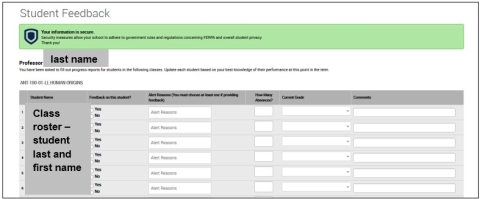
Click to Begin Entering Student Feedback
The link above expires on 04/20/2026. If you would like to provide feedback after the expiration above, please contact your administrator.
If you have trouble with the above link, copy and paste this address into your browser:
https:// buffalostate.campus.eab.com/e/Na-XTuo7Xy

Please Note: When you select the Click to Begin Entering Student Feedback, hyperlink or copy and paste the URL address into your browser (Chrome or Firefox), you will be taken directly to the Student Feedback screen where you may begin completing Progress Report(s) and raise Alerts on behalf of your students in your course(s).