

Progress Report
Navigate’s Progress Report feature is used by faculty to share critical academic information on students enrolled in their courses. Use the instructions below to submit a Progress Report to initiate support for a student.
Accessing Your Progress Report
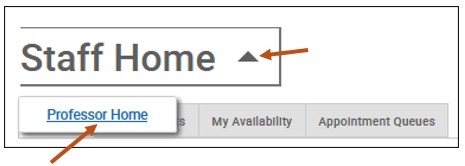
Staff can access their Progress Report(s) in two ways:
- Staff receive an email notification to submit Progress Report(s). The email has a link to the Progress Report Student Feedback form. If the staff member teaches multiple courses and or sections, these all appear on one page through the email link.
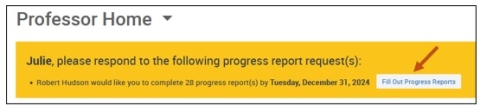
- Staff can also submit Progress Report(s) from Navigate via their Professor Home page. The link leads to the same Student Feedback form.
Progress Report Email Notification
You may access your Progress Report(s) directly from the Progress Report email notification that was sent to your Buffalo State University email.
The email below is an example of a Progress Report email notification sent to instructors requesting instructors to provide feedback and complete a Progress Report on their students. The Progress Report is administered twice a semester.
From: Robert Hudson <hudsonrj@navigatesupport.buffalostate.edu>
Sent: Monday, April 6, 2026 11:31:38 AM
To: Staff User Last Name, First Name (staffusername @ buffalostate.edu)
Subject: Spring 2026 - Late Semester Progress Report

Student Feedback Request
Dear Professor (Last Name),
The Late Semester Progress Report will be available in Navigate starting Monday, April 6th, and will remain open until Monday, April 20th.
The Late Semester Progress Report allows faculty to raise the Recommended Pass/Fail or Withdrawal Alert before the semester deadline of Friday, May 1, 2026.
- When an Alert is raised via a Progress Report, students can now view comments, if provided by their instructor.
- To learn more about the Alerts & Case Management workflow, please read our Alerts & Cases website.
- To learn how to raise an Alert via a Progress Report in Navigate, please watch the How to Complete a Progress Report video. Access requires your BSU Username and Network password.
- You may also read the How to Complete a Progress Report training guide.
- If your students are performing well and no Alerts are necessary, please log in to your Navigate account, access your Progress Report(s), and select the blue button: Submit unmarked students as not needing feedback (I’m all done).
A Note About Raising Multiple Alerts for the Same Student
To minimize the volume of emails received by both students and staff regarding Alerts:
- Multiple Alerts for a single student can be challenging for advisors managing several advisees.
- For students in the same course, receiving multiple Alert notifications can be overwhelming.
- For students with multiple concerns, please raise the most pertinent Alert, such as Recommend Pass/Fail or Withdrawal. Include additional concerns in your comments, such as: (1) 3+ Attendance Absences, (2) In Danger of Failing, and (3) Missing/Late 2+ Assignments. This clarity will aid support staff in providing appropriate outreach and intervention.
If you need a training session on how to complete your Progress Report(s), please email me at hudsonrj@buffalostate.edu to book an appointment. Thank you for your continued efforts to support our students' success!
Bob Hudson, M.S.
Assistant Director for Student Success Administrative Systems
Click to Begin Entering Student Feedback
The link above expires on 04/06/2026. If you would like to provide feedback after the expiration above, please contact your administrator.
If you have trouble with the above link, copy and paste this address into your browser:
https:// buffalostate.campus.eab.com/e/Na-XTuo7Xy

Please Note: When you select the Click to Begin Entering Student Feedback, hyperlink or copy and paste the URL address into your browser (Chrome or Firefox), you will be taken directly to the Student Feedback screen where you may begin completing Progress Report(s) and raise Alerts on behalf of your students in your course(s).
Completing a Progress Report
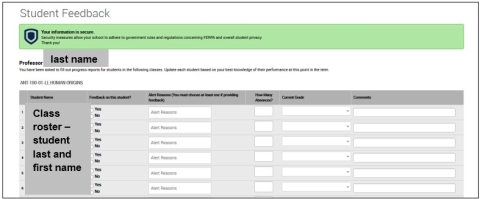
Step 1: On the Student Feedback screen, you will see a list of course sections and students that feedback is being requested for. Begin filling out feedback.
- Please complete all information in each column.
- When an Alert is raised via a Progress Report, students can now view comments, if provided by their instructor
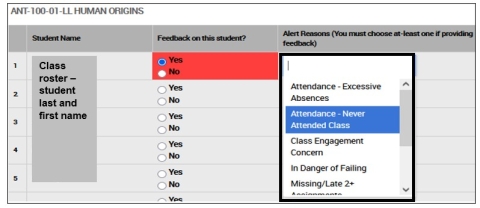
Step 2: If you have feedback about a student, select Yes and choose one (1) Alert Reason from the drop-down menu that indicates why you are submitting feedback on this student. Please fill out the remaining columns, including the comments section with additional details. Providing these additional details (comments) will help the advisor and student get a clearer understanding of what is going on. Students can view these comments on Progress Reports submitted about them.
To minimize the volume of emails received by both students and staff regarding Alerts we are asking instructors to do the following:
- For students, where you as the instructor have multiple concerns, please raise the most pertinent Alert, such as Recommend Pass/Fail or Withdrawal.
- Then rather than submit additional cases for the same student we are asking you to include these concerns in the comment field that is available.
- Options might include 3+ Attendance Absences, In Danger of Failing, and Missing/Late 2+ Assignments or any other pertinent information.
- This clarity will streamline the process within Navigate and yet the advisor can still discuss all of your concerns at the same time.

Step 3: When submitting your Progress Reports, you have the option to submit only the students you have filled out feedback for or to submit all students. If you choose to submit all students, the students who you have not filled out feedback for will be marked as I do not have feedback about this student.
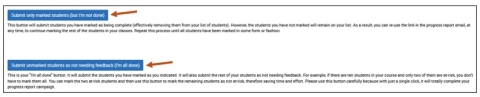
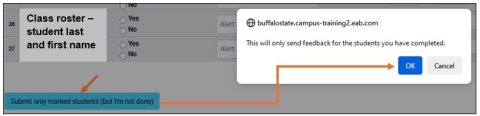
- Submit only marked students (but I’m not done). This button will submit students you have marked as being complete (effectively removing them from your list of students). However, the students you have not marked will remain on your list. As a result, as long as the Progress Report window is open, you can re-use the link in the Progress Report email, at any time, to continue marking the rest of the students in your classes. Repeat this process until all students have been marked in some form or fashion.
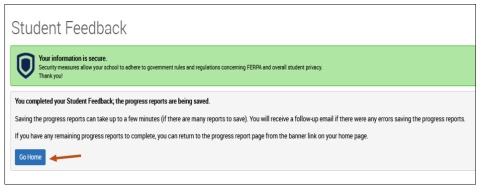
- Submit unmarked students as not needing feedback (I'm all done). This is your "I'm all done button". It will submit the students you have marked as you indicated. It will also submit the rest of your students as not needing feedback. For example, if there are ten students in your course and only two of them are at-risk, you don't have to mark them all. You can mark the two at-risk students and then use this button to mark the remaining students as not at-risk, therefore saving time and effort.
- Note: Please use this button carefully because with just a single click, it will totally complete your Progress Report(s).