My Docs
What: My Docs lets students see Appointment Summary reports, Notes, and Progress Reports for applicable Care Units in Navigate360.
Where: The page can be accessed via the My Docs icon in Navigate360 Student mobile and desktop.
Who: This feature is for current students.
My Docs lets students see Appointment Summaries, Notes, and Progress Reports. Permissions for viewing Appointment Summaries, Notes, or Progress Reports are dependent on how your institution has User Roles configured in the Navigate360 staff platform.
If granted the permission, students can view their Appointment Summaries, Notes, and Progress Reports, from their My Docs icon on either their Navigate Student desktop site or on their Navigate mobile app.
Step 1: Select your My Docs icon. If there is an unread document, a red notification icon with the number of unread icons displays next to the My Docs icon.
Step 2: On your My Docs page, select Appointment Summaries, Notes, or Progress Reports. Reports are hidden 180 days after they are created.
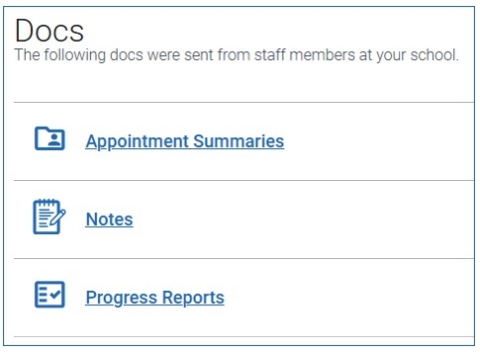
If a student clicks on a type of report on their main Docs page (Appointment Summaries, Notes, or Progress Reports) a list of the type of document appears. For example, if the student clicks Appointment Summaries, a list of Appointment Summaries staff have made visible to the student displays.
Appointment Summaries
Appointment Summaries let staff document information about specific student appointments or drop-ins. Students can see if a document is unread, indicated by a blue dot. When the student views the document, it changes to Read and the dot disappears.
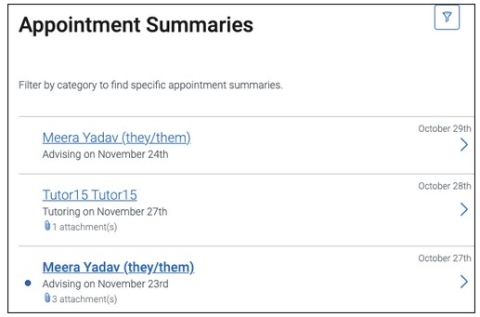
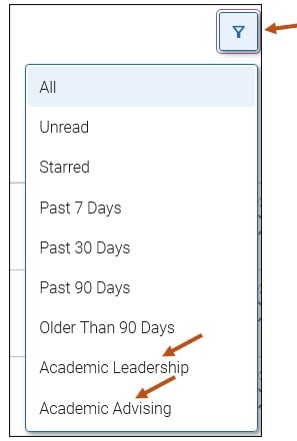
Students may filter by Care Unit to narrow their list of Appointment Summaries down.
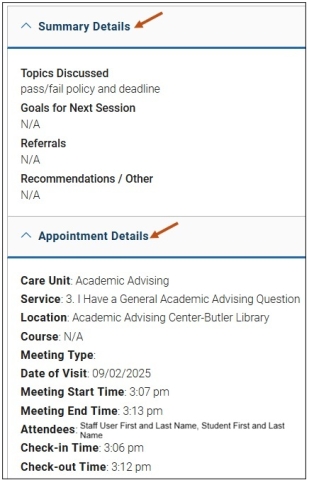
When a student clicks into an individual Appointment Summary, they can see all of the details about the appointment which includes Summary Details and Appointment Details. They also see staff responses to any template questions that have been set up for that Care Unit.
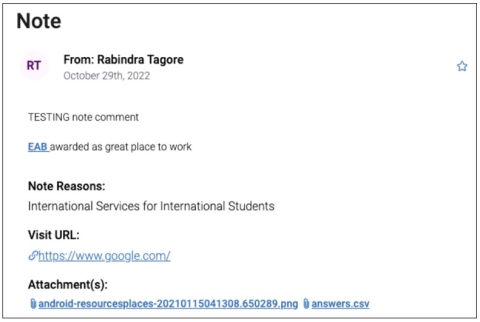
Progress Report - Example
From: (Staff User First Name, Last Name)
Mar 3, 2026
Hi, your instructor (Fist Name, Last Name) has the following feedback regarding your COLLEGE WRITING I class. If a field says "N/A", this means that your instructor left that field blank.
Alert Missing/Late 2+ Assignments
How Many Absences? N/A
Current Grade N/A
LMS Current Course Score N/A
LMS Current Course Grade N/A
Comments
I need your first project, ASAP! That's a big chunk of your grade!
Accessing Your My Docs - Navigate Student Mobile App
To access your My Docs via your Navigate Student mobile app, please follow these steps:
Step 1: From your Navigate mobile app, please select the Applications icon to access all your Navigate Student icons.

Step 2: Select your My Docs icon.
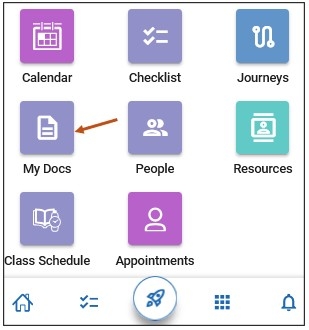
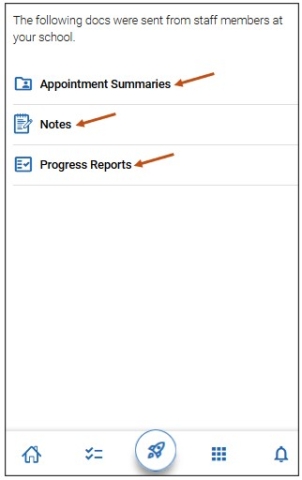
After selecting your My Docs icon, you can view your Appointment Summaries, Notes, and Progress Reports. You can select the following to view more information.
- Appointment Summaries
- Notes
- Progress Reports