Surveys
What: Surveys are what Content Administrators build in Survey Builder. The Survey page in Navigate360 Student lets students see all the Surveys sent to them.
Where: The Survey page is an entry on the student main menu if your school uses it.
Who: This is about how students see Surveys in Navigate360.
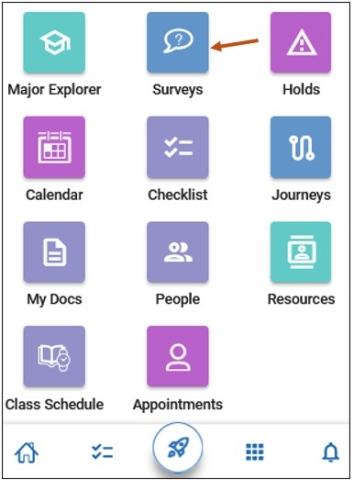
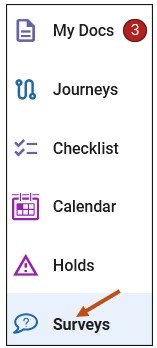
To open the Survey, select the Survey link on your Navigate Student Desktop Site. You can find the Survey link on the left-hand side of your navigation tool bar. Open the Survey page by clicking the respective icon on the home page.
Please Note: Survey Campaign surveys get the same emails, push notifications, and texts as non-Campaign surveys. There is no difference on the student side and students will not know a survey is part of a campaign.
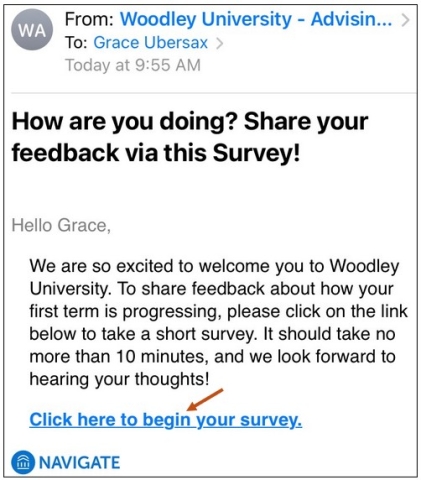
After a survey is built and published, students are notified (if they have notifications turned on) via email. See below for an example of what a survey notification email looks like.
The Survey Home shows any surveys sent to the student through Navigate360. The title students see is the External Title field entry in Survey Builder. If the survey is a Quick Poll, it will be marked that way.
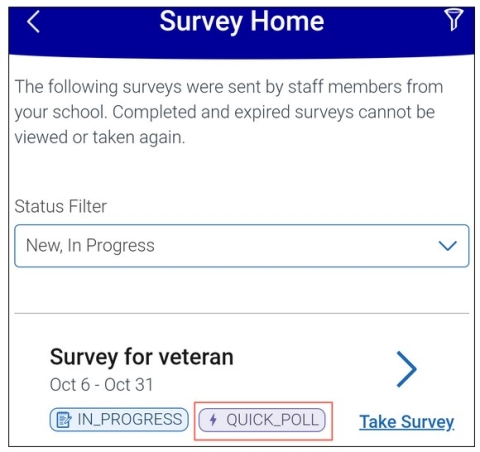
Students can filter the list of surveys to see any new surveys, as well as ones that are in progress, expired, or completed. By default, the list shows new and in progress surveys to the student.
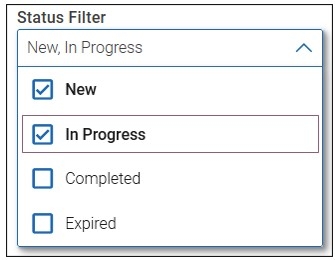
There are four student-facing Survey statuses:
- New. The survey has started but the student has not answered any questions. This replaces the value Unstarted.
- In Progress.The survey has started, and the student has answered some questions, but has not completed the survey.
- Completed. The survey has started or ended, and the student has completed it.
- Expired. The survey has ended, and the student did not complete it.
- Quick Poll. The survey is a quick poll. This status will appear on any Quick Poll and with whichever status the survey is in for the student.
If the student has any new or in progress surveys, a Take Survey button will appear next to surveys the student has not completed that are still active.
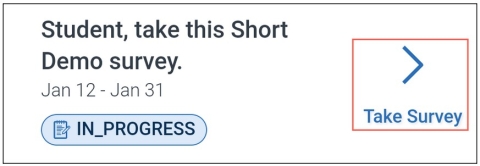
Students cannot view or take surveys that are completed or expired.
When the student opens the survey, either via the link in the notification (if they have notifications turned on) or in Navigate360 Student, they see your introductory text, if configured. See below for the Navigate Student Desktop Site version of the introductory page.
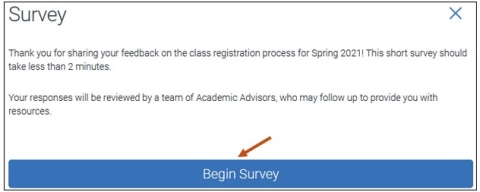
After reading the introduction, students select the Begin Survey button and begin taking the survey.
During the survey, students see a progress bar at the top. The bar reflects how far along students are in the overall survey as they answer each question.
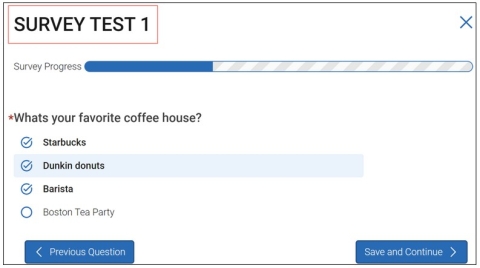
Students may exit the survey at any time by selecting the X at the top of the survey question.

Students will get asked if they really want to exit the survey.
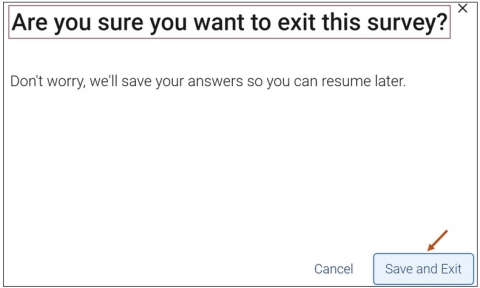
If yes, please select the Save and Exit button. If no, please select the Cancel button.
Students can continue later by selecting the tile on the home page; they do not have to restart the survey at the beginning.
After finishing the survey, students see a message informing them that they have completed the survey.
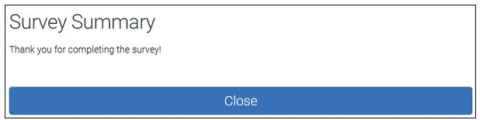
After a survey is completed, it's removed from their home page. They do not see it again.