Student Resources
What: Resources is a directory for students to learn about physical and digital resources that are critical to their success as students. The student chooses the page they wish to go to from the Resources Menu (Places or People). Both pages have search bars.
Where: Resources is a link on the home page for the Navigate360 Student Desktop site and Navigate Student mobile app.
Who: Resources is meant to be used by current students.
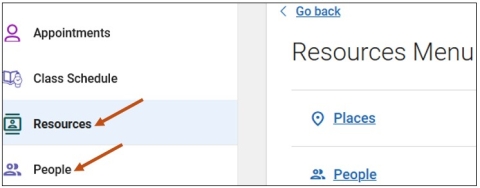
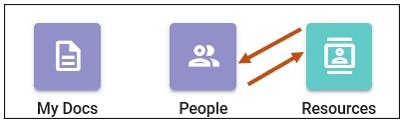
From your Student Desktop site, you can access your Resources and People pages by selecting the Resources or People icons on the left-hand side of your navigation tool bar.
The Places Page in Resources
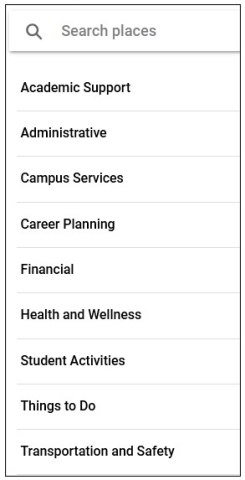
Resource categories on the Places page (the list on the left side of the page) are arranged in alphabetical order based upon the name of the resource category or topic. For example, Academic Support resources show above Career Planning.
Some example Resources include the following: General Subject Support Services, Math Support Services, and Writing Support Services.
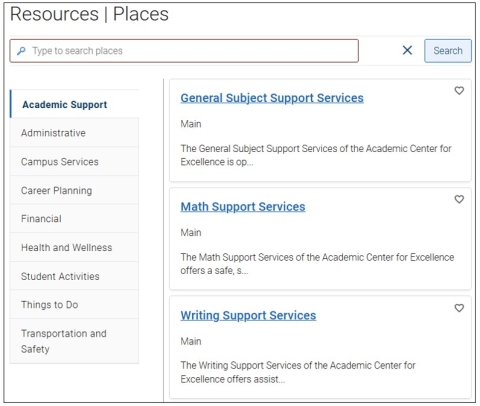
Each Resource has a title and short description with optional fields for room number, phone number, URL or a text link to the URL, and hours. Select the hyperlink to review additional information and details about the place.
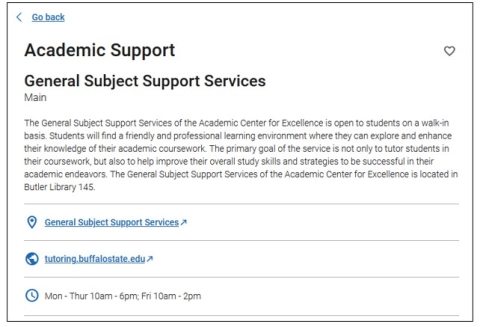
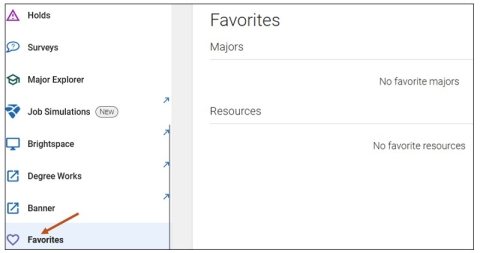
Select the heart icon to favorite a resource. You can find your favorites by selecting your Favorites icon on the left-hand side of your navigation tool bar.
The People Page in Resources
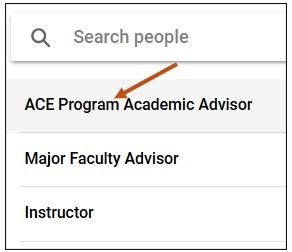
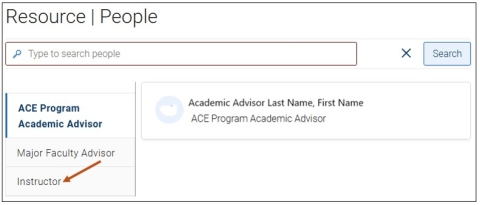
The People page in Resources is where contact information for assigned staff and faculty (Academic Advisors and course instructors) can be found. If your staff and faculty have entered pronouns, this shows on the People page. You may also search for your assigned advisor(s) or course instructor(s) in the search bar.
Accessing Your Resources & People Pages - Navigate Student Mobile App
To access your Resources and People pages via your Navigate Student mobile app, please follow these steps:
Step 1: From your Navigate mobile app, please select the Applications icon to access all your Navigate Student icons.

Step 2: Select either the Resources or People icons.
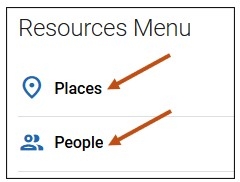
When you select your Resources icon, you can view your Resources Menu and select the following icons:
- Places
- People
1. The Places icon is a directory for you to learn about physical and digital resources that are critical to your success. You can select any category listed and be taken to Resources listed under that category. For example, if you select the Academic Support category, you can view the following Resources: General Subject Support Services, Math Support Services, and Writing Support Services. You may also search for Places in the search bar.
2. People icon. The People icon, under the Resources Menu, is where contact information for assigned staff and faculty (Academic Advisors and course instructors) can be found. If your staff and faculty have entered pronouns, this shows on the People page.