

Notification Center
All notifications will now be shown in the Notification Center so long as the student is opted in or notification preferences are set to Force in the site configurations. The only exception to this would be push notifications, which only appear on the student's mobile device.
When notifications are set to “Force,” students are automatically opted in and do not have the option to opt out. At this time, the only features configured this way on our Navigate site are Surveys and Journeys Assignment. For both Surveys and Journeys Assignment, students are automatically opted in to receive an email notification. However, students can also opt in to receive a text message for both Surveys and Journeys Assignment.
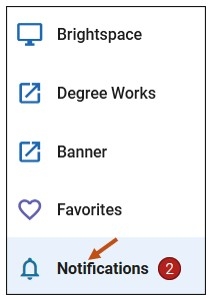
To open your Notification Center, select the Notifications link on your Navigate Student Desktop Site. You can find the Notifications link on the left-hand side of your navigation tool bar.
Notifications older than 90 days are cleared from Navigate360. Enable email notifications to get an email copy. You can also enable mobile push and text notifications.
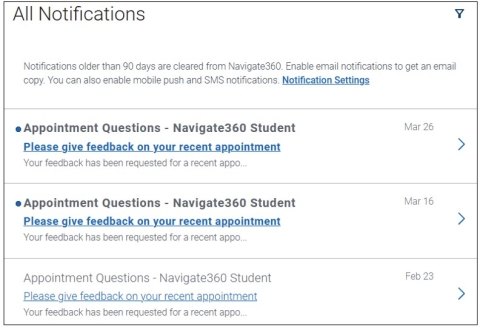
Notification Settings
What: Notifications are messages sent from Navigate360 Student to the student via a push notification, text message, or email.
Who: Notifications are sent to students.
Some notification settings might be controlled by your school. You might not be able to configure notifications for all features. At this time, the only features configured this way on our Navigate site are Surveys and Journeys Assignment. For both Surveys and Journeys Assignment, students are automatically opted in to receive an email notification. However, students can also opt in to receive a text message for both Surveys and Journeys Assignment.
Notifications are associated with Academic Plan suggestions, Study Buddies, Surveys, Journeys and Steps, Mandatory To-Dos, and Events. They are also associated with Personal To-Dos the student sets for themselves in the app.
Please Note: Currently, we are not using Academic Planner or the Study Buddies features.
- Mobile Push Notification: You will receive push notifications on your mobile device if you have installed the Navigate360 mobile app and allowed Navigate360 to send your push notifications. Please go to the App Store or Google Play Store to download the Navigate360 mobile app.
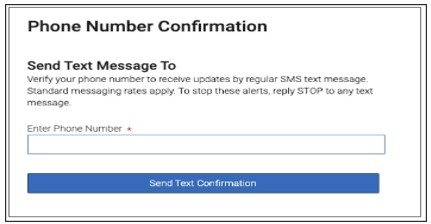
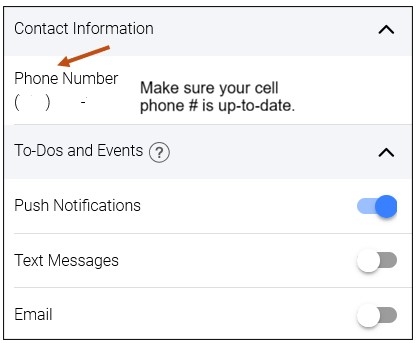
- Text Message: You will receive text message notifications if you have added your phone number and verified it. You can change your phone number.
- Email: You will get email notifications to your official school email address. You cannot pick a different email address.
The Notifications Center shows notifications regardless of your email, text message, or push notification settings.
Please Note: The information below details how notifications in Navigate360 Student function. Text messages can also be sent from the Navigate360 Staff platform to students. That functionality works differently than is outlined below.
Your institution determines which To-Dos that are classified as mandatory. They are typically tasks related to Financial Aid, Tuition, Drop Deadlines, and Scheduling & Registration.
Holds can also trigger push notifications. Push notifications for holds will happen when:
- A new hold comes through Banner to Navigate360 Student that the system has not seen before.
- 14 days has passed since the last push notification about an existing hold.
- 14 days have passed since the student used Navigate360 Student to view how to resolve a hold and it has not yet been resolved per Banner.
Opting In to Navigate360 Student Notifications
Students must opt in to receiving notifications from Navigate360 Student to receive the notifications your institution has set up.
From your Navigate Student Desktop Site, you may access your Notification settings by selecting your initials in the upper right-hand corner. Example: AC. From the list of menu options, you can select the following:
- Account
- Favorites
- Sitemap
- Logout
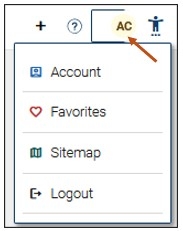
To access your Notifications, please select the Account option from the menu.
From your Account screen, you can select the following hyperlinks:
Edit Pronouns
Students can add and edit pronouns on the Account page. If no pronouns have been selected, no pronouns will display. Pronouns for students display on the students Home page, Accounts page, and Study Buddies. Please Note: Currently, we are not using the Study Buddies feature.
Retake Intake Survey
- What - The Intake Survey allows institutions to identify more information about students and send communications to specific populations of students. It is built by EAB.
- Where - The Intake Survey is auto-launched in Navigate360 Student for all first-time users if accessed during an active Intake Survey time range. The Intake Survey can be re-accessed by students in Account by selecting Retake Intake Survey.
- Who - The Intake Survey is answered by current students.
Update To-Do Topics
Notification Settings
About
Select the Notification Settings hyperlink.
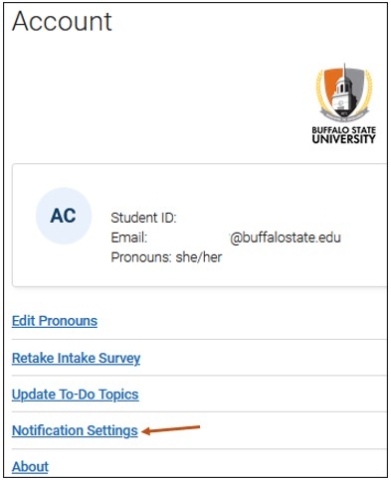
You may also open your Notification Settings, by following these steps:
Step 1: select the Notifications link on your Navigate Student Desktop Site. You can find the Notifications link on the left-hand side of your navigation tool bar.
Step 2: Select the Notification Settings link.
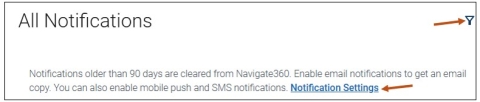
After selecting the Notification Settings hyperlink, you may do the following:
Update Your Contact Information.
To-Dos and Events - Notifications about upcoming, due, or overdue To-Dos and events created by your school.
Personal To-Dos - Notifications about To-Dos you created.
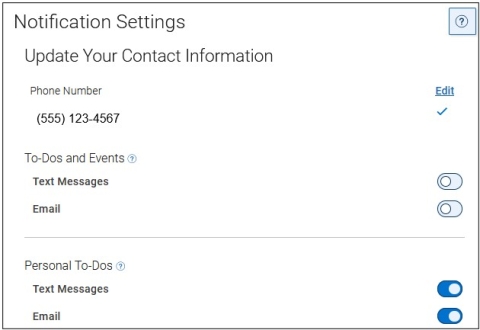
Study Buddies - Notifications when new students join your study buddies group.
Surveys - Notifications about new surveys and reminders to complete them.
Journey Assignment - Notifications about Journey actions.
Journeys Steps - Notifications about Step actions.
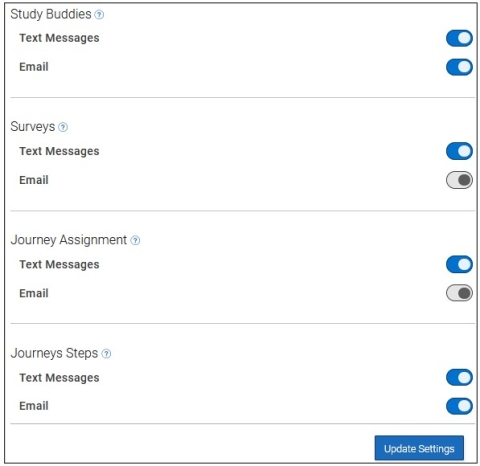
Select your preferred method of notification. Once you update your Notification settings to include Text Messages, Email, or both, please select the Update Settings button.
Please Note: You can select as many notification methods as desired, but you receive multiple notifications if you choose more than one.
If you select the Text option, ensure that your cell phone number is accurate in Navigate360. Students must enter their cell phone information in the Update Your Contact Information section. They can enter a different phone number than the number on file with your institution. When the Phone Number field is blank, it is updated to Add Your Phone Number. The number updated on the Notifications page on your Student Desktop Site or your mobile app is not pulled from Banner.
Please Note: The phone number a student enters in Navigate360 Student cannot be written back to Banner. There is no way to alert you or your institution if the contact information a student has entered is different than what you have on file.
The self-reported number also does not alter the number that is attached to the student within Navigate360 Staff, as the numbers for text messages sent from Navigate360 Staff are sourced from Banner. If the student does not enter a mobile phone number, but elects to receive text messages, the message is delivered as an email instead.
Students can select which types of notifications they wish to receive. They may choose more than one way to receive a notification. For example, students may choose to have both a text message and email sent.
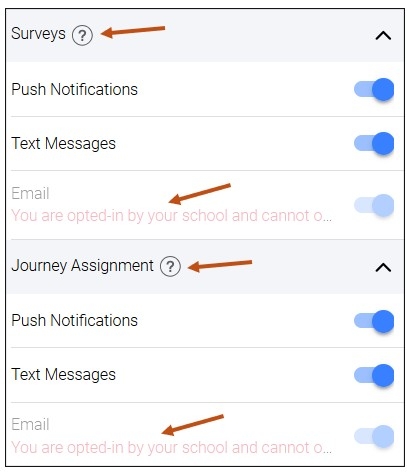
Additionally, your institution can determine if you would like email notifications to be automatically opted-in for students. This means they receive all scheduled notifications via email even if they have not yet opted into notifications in Navigate360 Student. For both Surveys and Journey Assignment, students are automatically opted-in for email notifications.
For students who have not set notification preferences for the School Reminders category, but who have set notification preferences for the Personal To-Dos category, their preferences from the Personal To-Dos category are copied as their preferences for the School Reminders category.
Student Notifications from Navigate360 Student
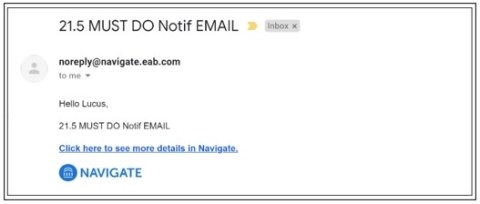
Email notification is sent from noreply@navigate.eab.com as shown in the example below. If the notification is for a Must-Do or personal To-Do, you see a Click here to see more details in Navigate360 link. If it is for a different notification, the student sees the URL instead.
Navigate360 partners with a third-party SMS platform, Twilio, to deliver verification codes when students opt into text messages. Delivery time of the code varies depending on many factors outside of our control, but students can select Resend Code if the delivery is not timely.
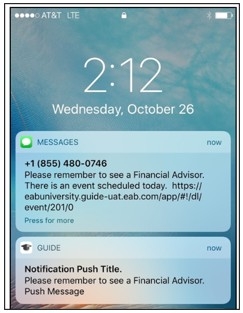
Text messages and push notifications display as shown below.
All text messages come from a toll-free number, 855-480-0746. Students cannot respond to text messages generated from Navigate360 Student. The date that a notification is sent to a student is determined and configured by your institution. However, all notifications are sent at 11 AM Eastern time on the day they are configured to be sent. This time cannot be changed or configured by your institution. If there are a large number of students receiving the notification, it may take additional time for a notification to actually reach the student's phone.
Please Note: This is a different number than text messages sent from Navigate360 Staff.
If a student no longer wants to receive notifications, they must log into Navigate360 Student and change their Notifications Settings.
Accessing Your Notification Center - Navigate Student Mobile App
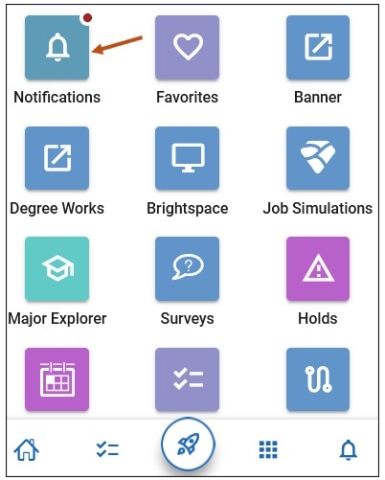
To access your Notifications Center via your Navigate Student mobile app, please follow these steps:
Step 1: From your Navigate mobile app, please select the Applications icon to access all your Navigate Student icons.

Step 2: Select the Notification icon.
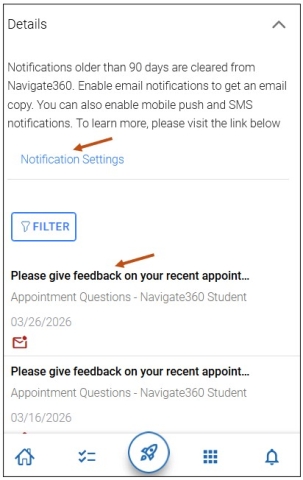
Accessing Your Notification Settings - Navigate Student Mobile App
To access your Notification Settings via your Navigate Student mobile app, please follow these steps:
1. From your Navigate mobile app Home screen, please select the Profile Options icon in the upper top left-hand corner.

2. From your Profile Options menu, please select Account.
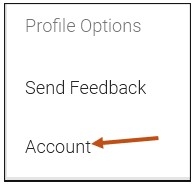
3. After selecting Account, please select Notification Settings from the menu.
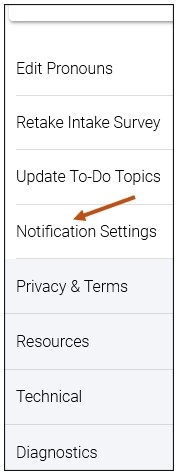
Update Your Contact Information and To-Dos and Events. Select whether you want Push Notifications, Text Messages, or Email. You may select more than one option.
Update your Personal To-Dos and Study Buddies. Select whether you want Push Notifications, Text Messages, or Email. You may select more than one option.
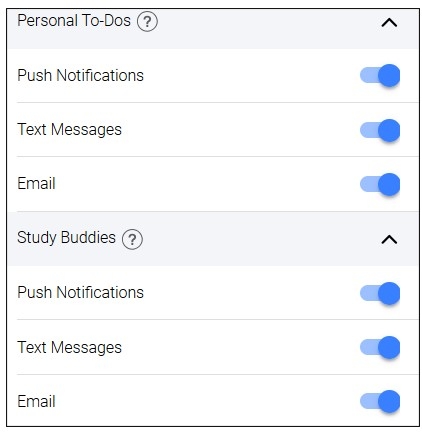
Update your Surveys and Journey Assignment. Select whether you want Push Notifications or Text Messages, or both. For both Surveys and Journey Assignment, you are automatically opted-in for Email notification.
Update your Journey Steps, Appointment Questions, and Events. For Journey Steps, select whether you want Push Notifications, Text Messages, or Email. You may select more than one option. For Appointment Questions, your choice is Push Notifications only. For Events, your choice is Push Notifications only.
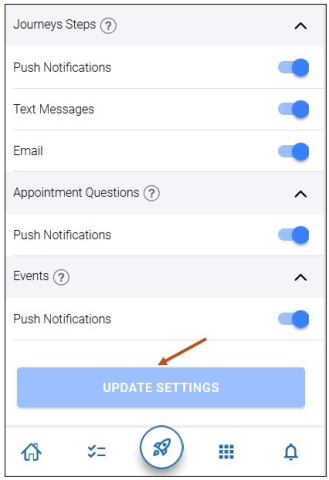
Select the Update Settings button to save your notification settings.