

Major Explorer
What: Major Explorer is used by students to explore best-fit majors through the associated survey. Based upon their interest and goals, students can gain initial insight into career statistics associated with different majors. Students can favorite majors to keep a list of majors they’d like to explore more or talk to their advisors about. Students cannot complete any steps that start or complete the change of major process.
Where: Major Explorer is located on the Explore navigation panel on mobile devices and on the left hand menu on desktop devices.
Who: Major Explorer is for students. Staff can also use the information from the Major Explorer survey.
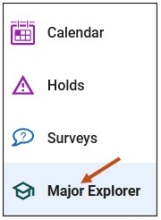
To open the Major Explorer, select the Major Explorer link on your Navigate Student Desktop Site. You can find the Major Explorer link on the left-hand side of your navigation tool bar.
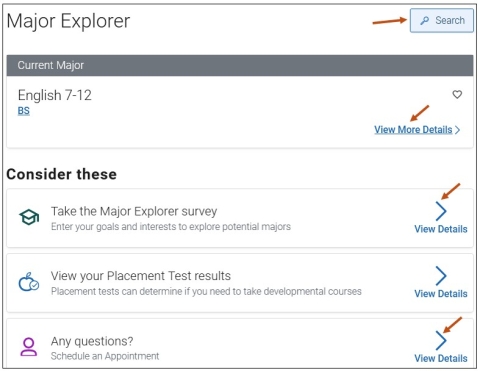
From the Major Explorer main screen, you can select View Details links to:
- Take the Major Explorer survey.
- Schedule an Appointment.
- The View your Placement Test results is no longer available.
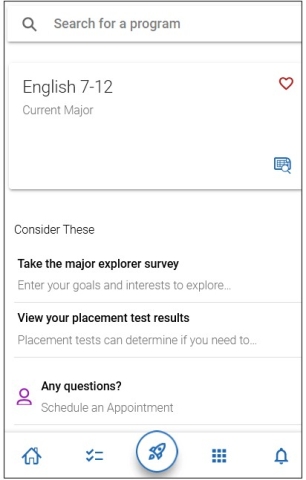
- Students may also search for any major without having to complete the quiz by selecting the magnifying glass Search button.
- You can also view your current major and select the View More Details link to read additional information.
Major Explorer Survey
The goal of the survey is to help students explore best-fit majors. It also helps them find federal BLS and O*NET career and salary data associated with those majors. The Major Explorer survey is an exploratory tool, rather than prescriptive tool. It encourages students to think about what they want to learn in college and accomplish in their careers to have more productive conversations with advisors.
Please Note: All career data is from O*NET. It cannot come from different organizations or companies.
Major Explorer Survey - Example
Students can access the survey at any time.
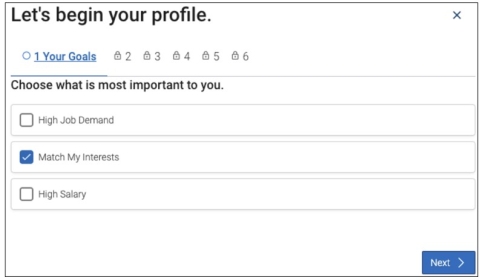
Students are first asked about their goals. They are prompted to rank the following options in terms of importance: High Job Demand, High Salary, and/or Match My Interests.
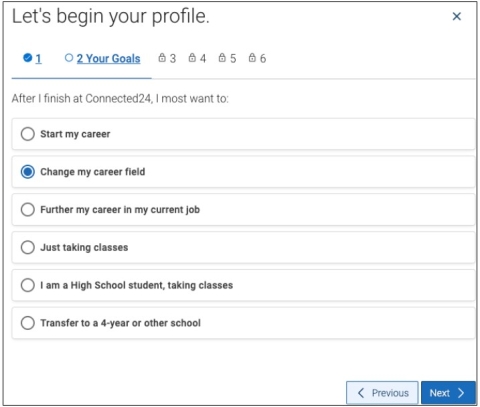
Students then select their post-graduation goal.
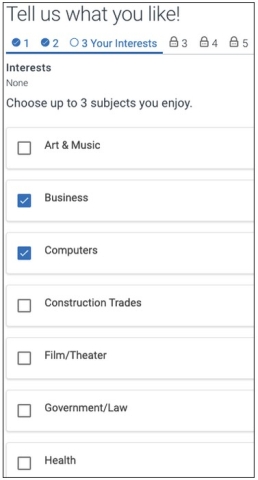
Students are prompted to choose up to three subjects they enjoy from a preset list.
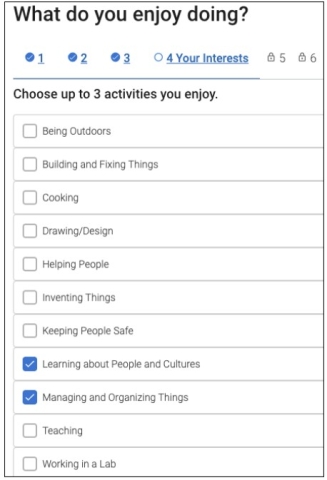
Students are prompted to choose up to three activities they enjoy from a preset list.
Based on their selections, students then see a list of suggested fields they may be interested in. These fields are broad in nature and could include many different majors at your institution. The suggestions are meant to help students begin to narrow their focus to particular areas.
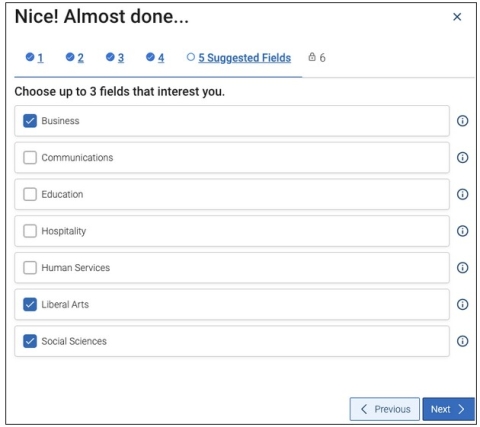
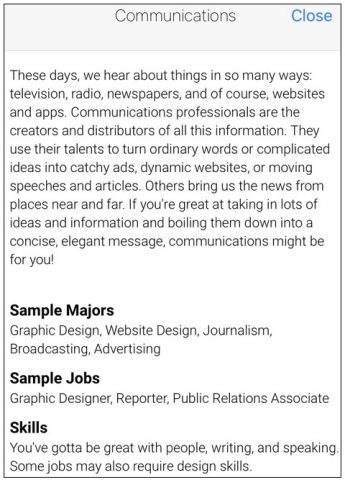
Students can learn more about a field by selecting the information icon next a field.

This opens a dialog with a short paragraph about the field, sample majors (not specific to your institution), sample jobs, and useful related skills.
Finally, the student sees the best-fit major suggestions offered at your institution. A proprietary algorithm creates these suggestions by linking student responses to active majors at your institution, based on the student’s responses. The student is prompted to change their selections if no suggestions appear.
Degree types show based on what type of degree/credential the student is pursuing now. If the student is pursuing a Bachelor’s degree. Certificate programs offered at our institution will not be shown.
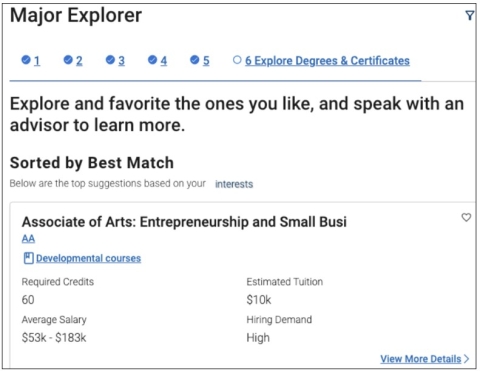
The student’s current program of study shows first if they have one, followed by the next best-fit suggestions. Students see up to 50 majors that match their Major Explorer survey results in Navigate360 Student.
They first see the first 10 majors when results first populate. At a glance, students see the following information:
- The name of the program
- The degree type
- If applicable, any developmental course requirements
- The number of required credits
- The estimated tuition
- The average salary
- The hiring demand
Student select Show More to receive more detailed information. This includes your institution’s program description for that major, the interests or subjects the student selected that relate to that major, and career suggestions which include salary range, level of education typically required, years of experience required, national hiring demand, and skills needed for the role. All career and salary data comes from O*NET. Data may be federal or state-level data, based on your institution’s choices.
Please Note: There is no indication in the app to students if the data is federal or state. Instead of taking this information at face value, use this data to help foster conversations with students about their interests and major/career prospects. If configured, students can also see the academic plan to explore courses required for the major.
Students select the heart icon of different majors to favorite them. Favoriting a major adds it to a short list of favorites available to them in the app as well as to the advisor on the Student Profile.
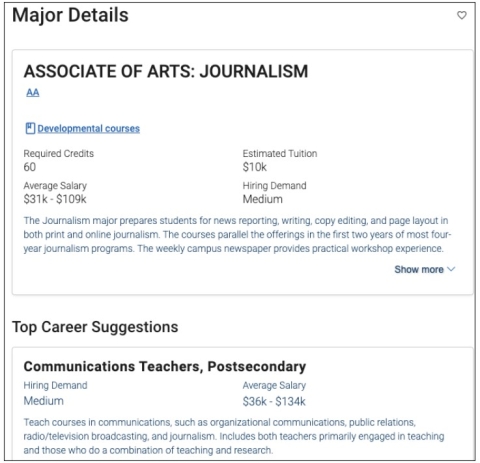
Students can access the Major Explorer survey at any time in their academic career to view the results of the quiz or to take the survey again. They may also search for any major without having to complete the quiz by selecting the magnifying glass icon. The answers a student submits in this quiz are available on the Student Profile.
Appointment Scheduling
Students may want to meet with an advisor after exploring major offerings at your institution. That is why students can open Appointment Scheduling from Major Explorer.
Accessing Your Major Explorer - Navigate Student Mobile App
To access your Major Explorer via your Navigate Student mobile app, please follow these steps:
Step 1: From your Navigate mobile app, please select the Applications icon to access all your Navigate Student icons.

Step 2: Select the Major Explorer icon.
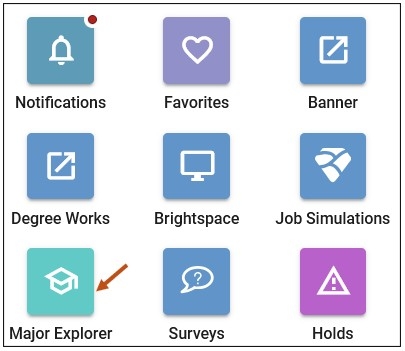
Major Explorer main screen.
Major Explorer Survey - Example
Students can access the survey at any time.
Students are first asked about their goals. They are prompted to rank the following options in terms of importance: High Job Demand, High Salary, and/or Match My Interests.
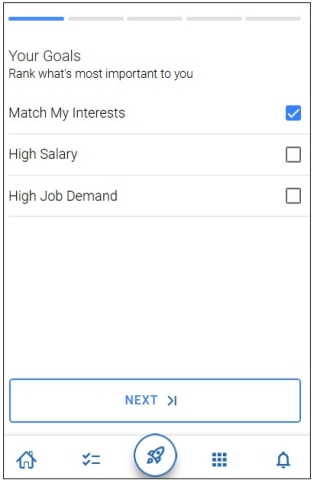
Select the Next button to proceed.