Important Message about Holds
-
Students cannot take action from within Navigate360 Student to resolve any holds. The hold notification in Navigate360 links them to the offices and resources where they can complete the necessary processes to resolve any holds they may have on their Banner account.
- Holds and their statuses are refreshed nightly within Navigate, so it will take a day after the student resolves the hold for it to reflect in their Student Desktop Site or Navigate360 Student app.
Holds Center
What: Hold Center informs students of holds on their account, provides information about the hold, and outlines clear action steps and resources to resolve the hold. Students can also schedule an appointment to meet with someone and ask questions about holds on their account. The goal of this set of features is to help students resolve holds faster.
Where: Students can Access the Hold Center via the Holds icon in their Navigate Student Desktop Site or on their Navigate mobile app
Who: Hold Center is used by current students.
Step 1: Select your Hold Center icon on the left-hand side of your Navigate Student Desktop Site or select your Holds icon on your Navigate Student mobile app. If a student has a hold on their account, a red number appears on the Holds icon on your desktop site but not on the mobile icon.
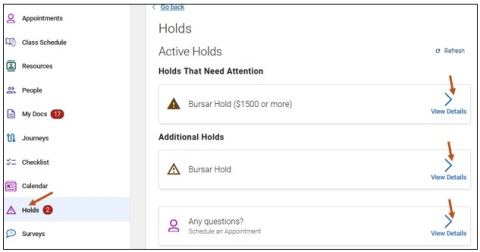
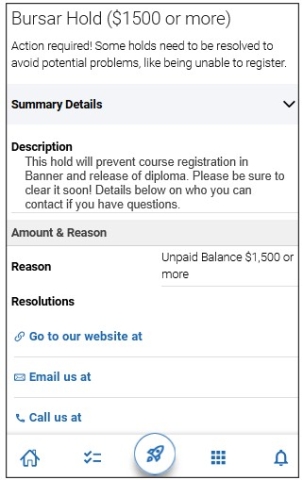
Step 2: Select the View Details arrow. This will provide you with the hold details, and outlines clear action steps and resources to resolve the hold. For example:
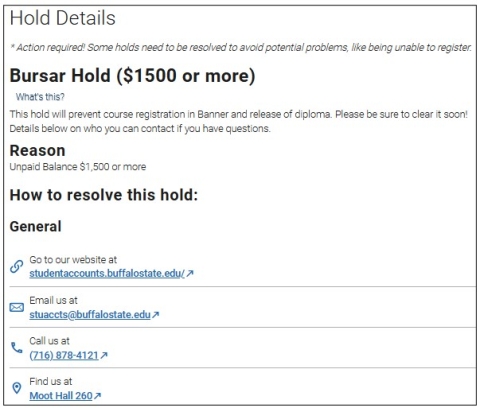
The type of hold: Bursar Hold ($1500 or more)
Reason for the hold: Unpaid Balance $1,500 or more
How to resolve this hold:
General Contact information
- Go to our website at: https://suny.buffalostate.edu/student-accounts
- Email us at: stuaccts@buffalostate.edu
- Call us at: (716) 878-4121
- Find us at: Moot Hall 260
Please Note: Holds and their statuses are refreshed nightly within our system, so it will take a day after the student resolves the hold for it to reflect in their Navigate360 Student app.
Students can also receive Push Notifications about Holds. Push Notifications for holds happen when:
- A new hold comes through Banner to Navigate360 Student that the system has not seen before.
- 14 days has passed since the last Push Notification about an existing hold.
- 14 days have passed since the student used Navigate360 Student to view how to resolve a hold and it has not yet been resolved per Banner.
Holds are classified either as Needs Attention or Additional Holds in Navigate360 Student.
If a student has a hold that was not resolved, but has an end date before the current date, it appears in the Past Holds section of the Holds table. If Banner deletes or deactivates holds, the Past Holds section does not show in Navigate360.
Accessing Your Holds Center - Navigate Student Mobile App
To access your Holds Center via your Navigate Student mobile app, please follow these steps:
Step 1: From your Navigate mobile app, please select the Applications icon to access all your Navigate Student icons.

Step 2: Select the Holds icon. A red dot in the upper right corner of the Holds icon indicates that you have a hold on your account.
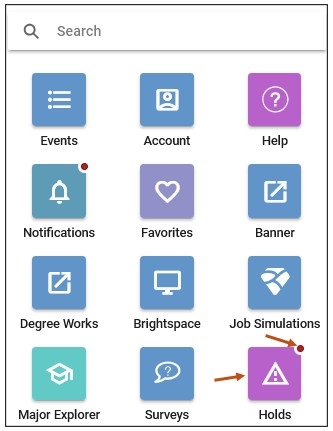
When students select the Holds icon, they can select the active hold they want to learn more about. If you select the hold name, you can review additional information about the hold. Also, if you need help or have any questions, you can select the any questions link and follow the prompts to schedule an appointment.
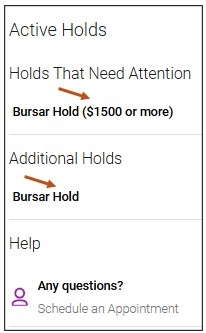
If you select the hold name (example: Bursar Hold), you can review additional information about the hold. The information includes the hold description, reason for the hold such as unpaid balance $1,500 or more, and resolutions that include contact information.
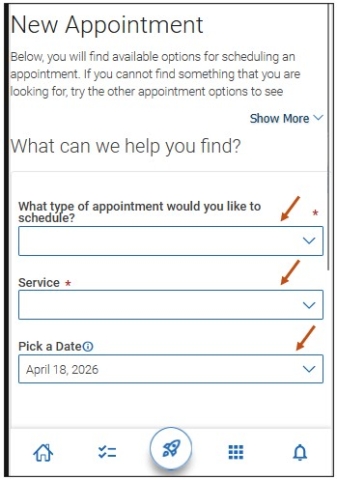
If you need help or have any questions, you can select the any questions link and complete the three drop-down menu options and follow the prompts to schedule an appointment.