Class Schedule
What: Students use Class Schedule to see the course section information for all the classes they are registered for in the current term.
Where: The Class Schedule is on Class Schedule tab of Navigate360 Student.
Who: Students use the Class Schedule.
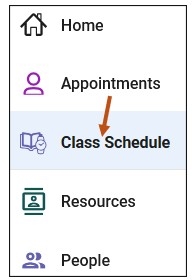
To open the Class Schedule, select the Class Schedule link on your Navigate Student Desktop Site. You can find the Class Schedule link on the left-hand side of your navigation tool bar.
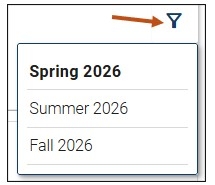
Use Class Schedule to see course section information for all the classes you are registered for in the current term. Students can use the filter in the upper right-hand corner to change the term and see courses for any other term in which they are actively registered.
Please Note: Class Schedule relies on course section start and end times and it does not reflect day-to-day changes, such as holidays or class cancellations.
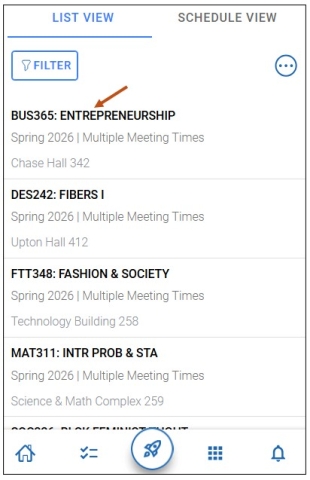
The Class Schedule has a list view and a schedule view for all terms. Location and time information for each course section is available from the list view of the Class Schedule. The section title, section labels, and CRN or section number is also available.
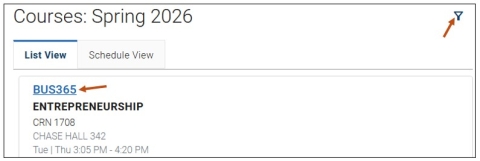
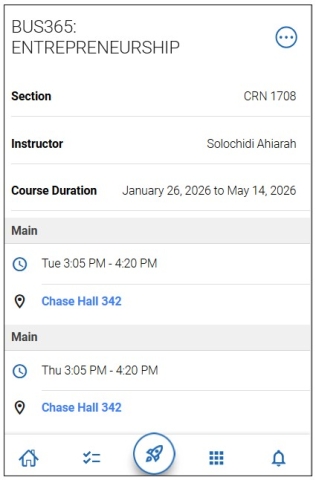
Selecting the individual course hyperlinks will allow you to view the following information.
- Course title
- CRN (Course Reference Number)
- Instructor
- Term start and end dates
- Location of class
- Any description
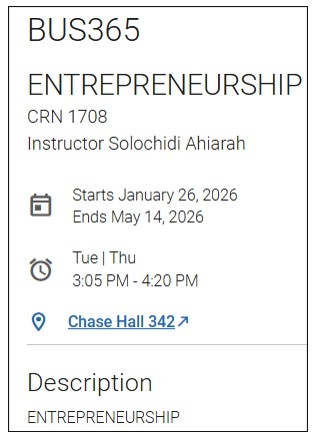
Students accessing the Class Schedule via the mobile app have the option to add all their courses to their native smartphone calendars by selecting Add All Courses to Calendar. To download their class schedule, students first need to allow Navigate360 Student access to their smartphone calendar. This typically occurs the first time the student logs into the mobile app, where a student is prompted to grant permission to access their calendar. This permission can be updated at any time in their smartphone settings page. Students can add one specific course to their smartphone calendar by selecting that course and clicking Add Course to Calendar. Students can read the description of course labels by hovering on a label on desktop or tapping a label on mobile.
Opening an individual course displayed all available course information, including the instructor, the start and end dates of that course, the days and times that the course section meets, the location, any section labels, and a description. If the course location includes an address, the location links to the student’s native desktop or mobile maps application and provides directions to the class.
Please Note: Course details such as location, instructor, and description only display if they are stored in Banner.
There are two views of the Class Schedule, List View and Schedule View.
List View Tab
Schedule View Tab
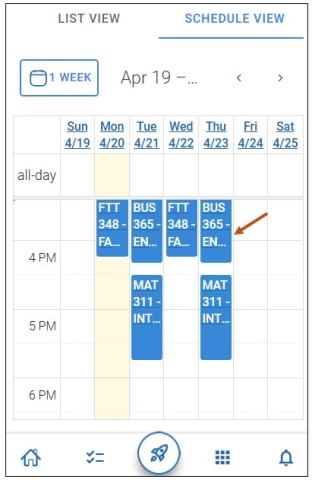
The Schedule View on mobile and desktop. It is not fully accessible. Students can scroll horizontally on mobile to see all days of the week.
The schedule view for the active term only shows the courses taking place in that current week. For example, the week of June 23 to June 29 would only show and have a banner display that reads Your schedule for 6/23 – 6/29. Sunday is the start of the new week. If a student looks at their course schedule for a future term, that display shows all courses scheduled for that term. The banner reads Previewing schedule for all classes throughout this term. Therefore, even if students are registered for courses that only meet during a particular session of the term, they still appear in that future term display. On the new mobile experience, students can switch between 1 day, 3 day, and 1 week view for upcoming classes.
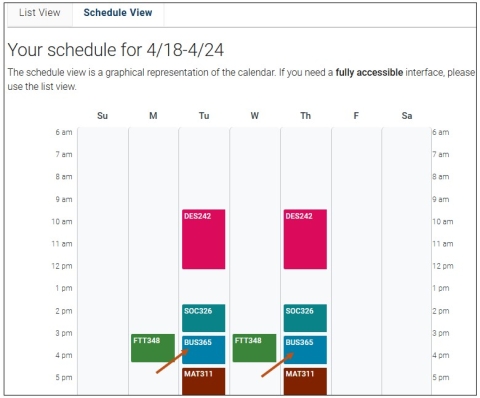
Selecting a class from the schedule shows section details.
- Course title
- CRN (Course Reference Number)
- Instructor
- Term start and end dates
- Location of class
- Any description
Accessing Your Cass Schedule - Navigate Student Mobile App
To access your Class Schedule via your Navigate Student mobile app, please follow these steps:
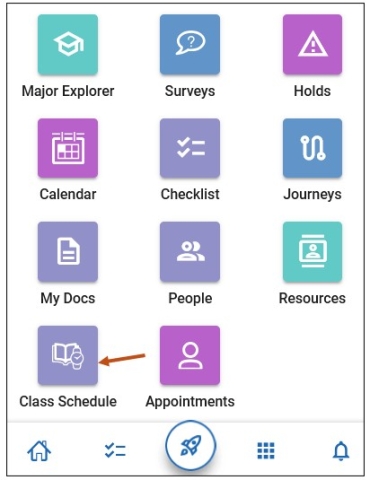
Step 1: From your Navigate mobile app, please select the Applications icon to access all your Navigate Student icons.

Step 2: Select the Class Schedule icon.
Class Schedule - List View
Class Schedule - Schedule View